Why Does the App Sometimes Mark Words as Incorrect Even when my Child Reads them Correctly?
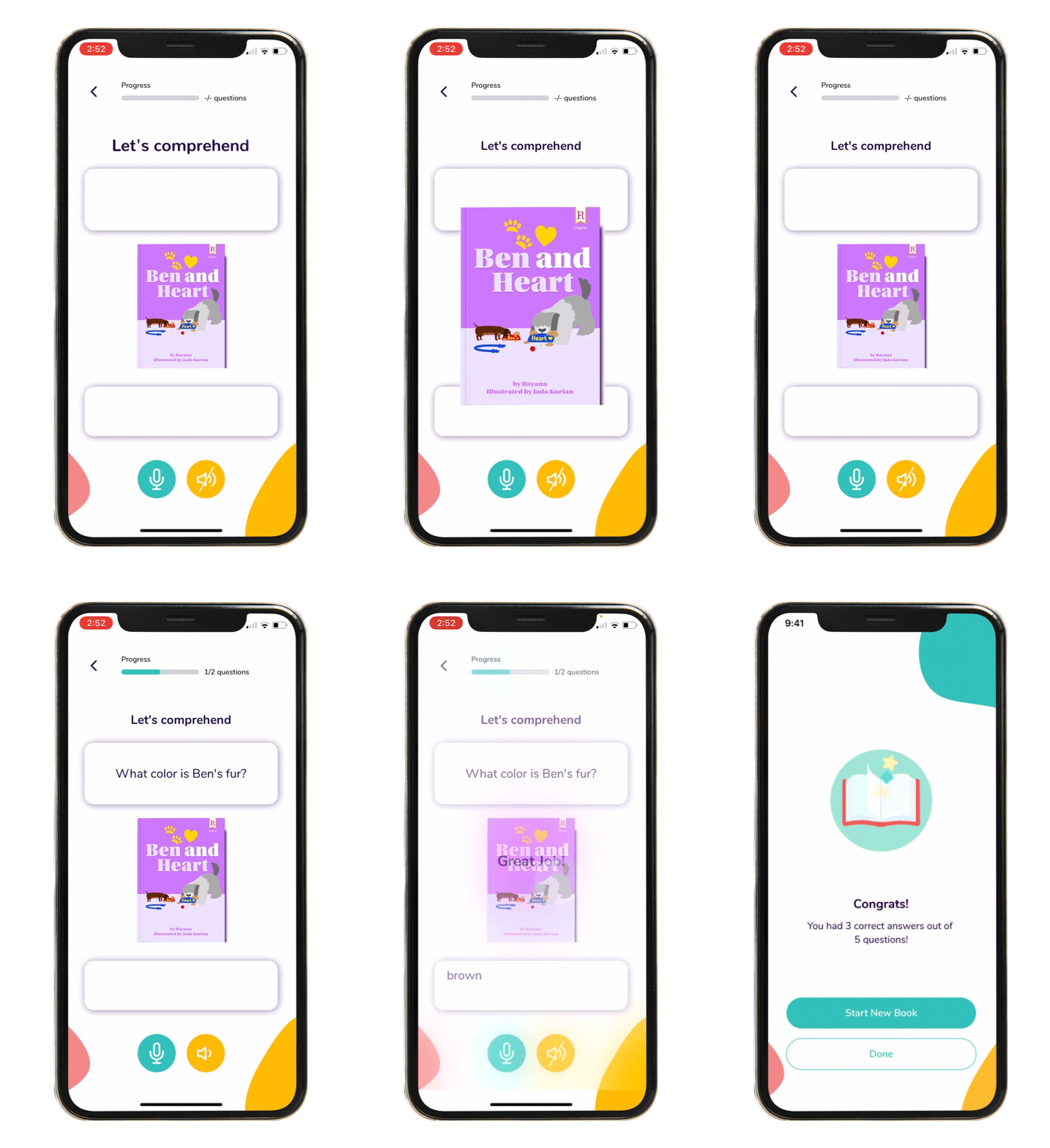
Readability Tutor uses speech recognition to listen as your child reads and match what it hears to the exact words on the page. It’s very good, and tuned for children’s voices, but like any listening technology it isn’t perfect. Every once in a while it can flag a word as incorrect even when your child said it right.
Here’s why that can happen: Accents and natural variation. Kids pronounce words in lots of perfectly acceptable ways (think “tomato,” regional vowel sounds, or saying “the” as “thuh” vs. “thee”). The system may expect one version and momentarily mis-hear another.
Connected speech. When children read smoothly, sounds blend together. “Did you” can sound like “didja,” or final sounds can get softened. Fluent speech is great for reading, but it can make exact word matching harder for a computer. Pauses and self-corrections. If a child starts a word, pauses, and then fixes it, the timing might look like a misread or skip to the system even if the final read is correct.
Background noise and mic setup. A TV in the next room, a fan, or a tablet held too far away can interfere with what the app hears. Extra or skipped words. The recognizer is aligning to the passage. Adding a small word (“and,” “uh”) or skipping a short word can shift that alignment and make nearby words look wrong. Tricky words and names. Proper nouns, abbreviations, and homographs (like “record” the noun vs. “record” the verb) can trip up automated scoring on the first pass.
A bit about how Readability Tutor works: kids read leveled passages out loud, the app listens for accuracy and fluency (pace, hesitations), and then gives supportive feedback. Adults can see results in the dashboard, accuracy, words-correct-per-minute, and comprehension checks to spot trends over time. Occasional misflags don’t change what matters most: steady growth across sessions.
What you can do right now: Help your child read in a quiet space and hold the device 6–12 inches from their mouth. A simple wired headset mic can also help. Encourage a natural pace and volume. Whispering or racing can confuse the mic.
If a word was marked wrong but you know it was right, have your child reread the line. The score often updates on the second pass.Use on-text supports when available, tap a word to hear it or see help, so the system gets a clean read.
Review the session in your parent/teacher view. If you notice repeated false flags on the same words, share a note with support along with the passage title; it helps us fine-tune recognition.
We’re continually improving our models, especially for young readers and diverse dialects. If something seems off, please reach out and reassure your child that an odd score here and there doesn’t mean they did poorly. The goal is confidence, accuracy, and comprehension building over time, and you’re right on track.

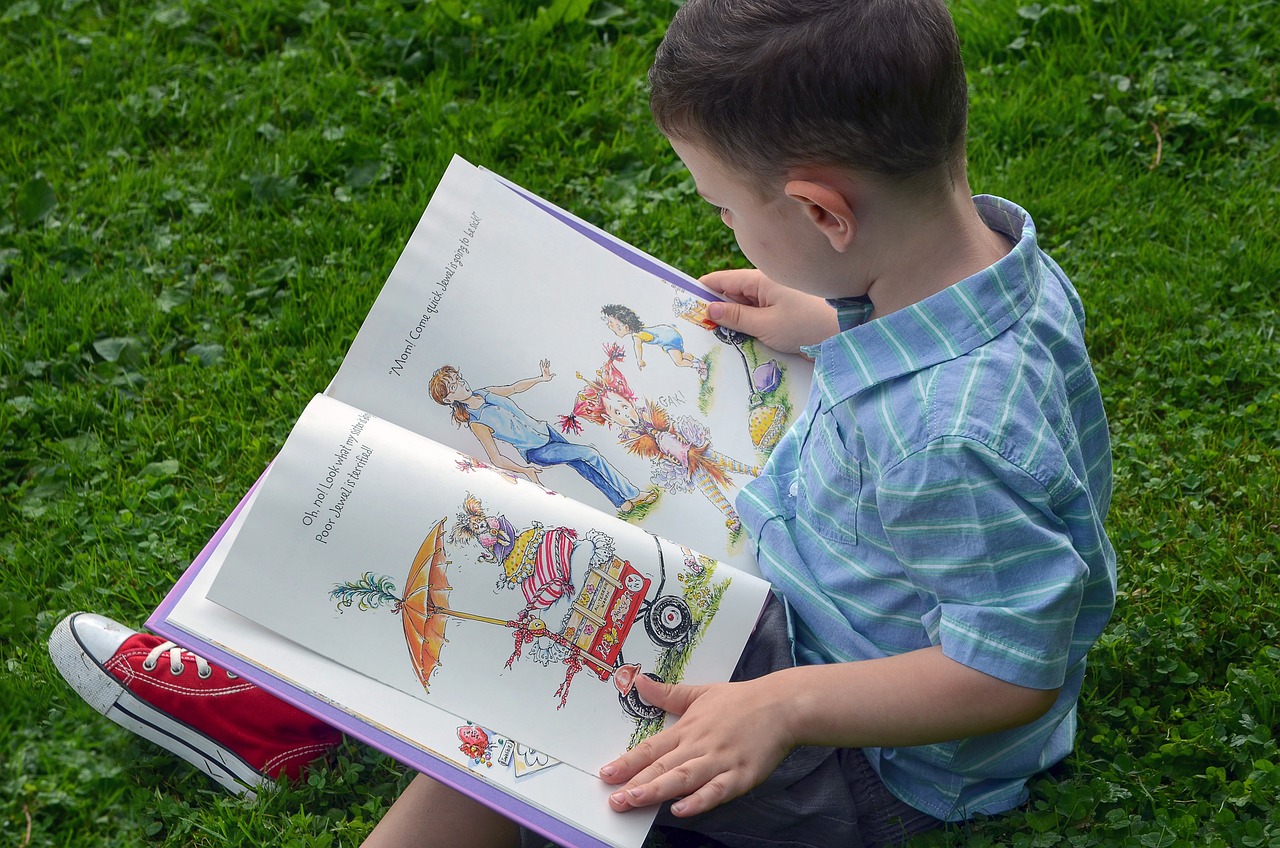
Fun & educational grade-level stories come to life with bright illustrations.
For K-6th grade, available on:
Smartphone
iPhone & Android
Tablet
iPad & Tablet